



Subscribe to our newsletter
Get the latest updates on new products and upcoming sales
Lots of our best sellers now on sale!

Call Us On
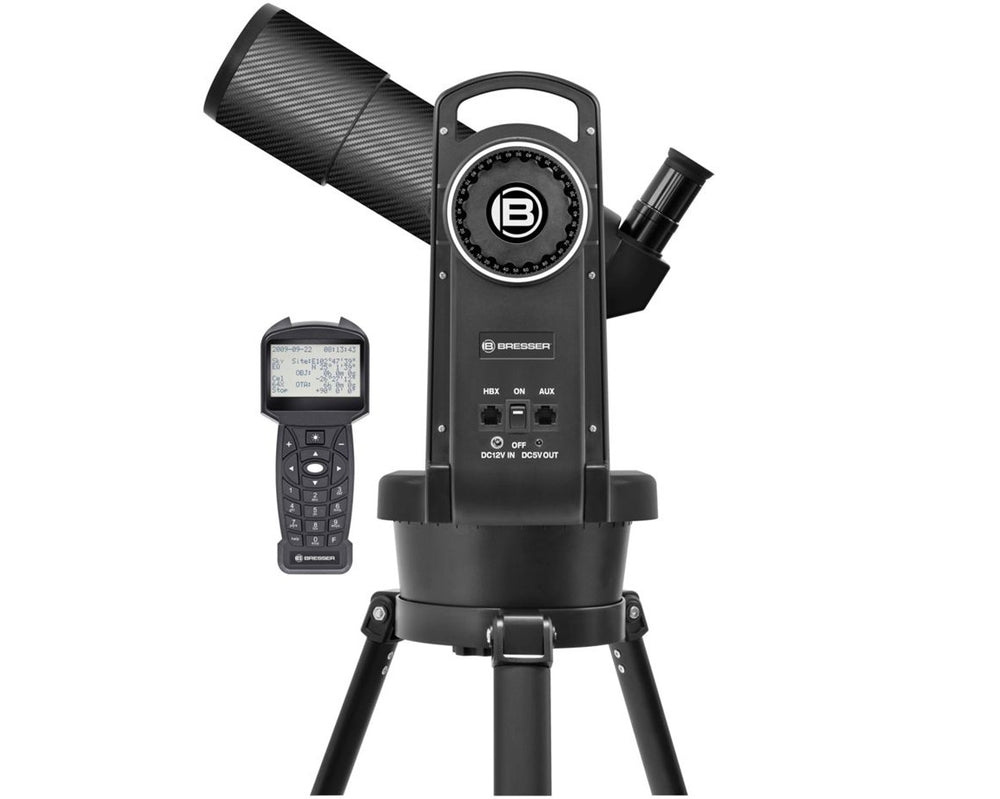
The computer-controlled Refractor Telescope BRESSER Automatic 80/400 is a wide-field-lens telescope that goes with you almost anywhere, due to its compact design. The telescope is the ideal choice for beginners and is also perfect for travelling. Take this computerized telescope with you to your favourite observation place, when you're hiking, camping or on vacation.
It may be small, but it still includes an easy-to-use go-to system. The BRESSER Automatic 80/400 can be operated on a desk or with the included tripod. The computer control allows for an easy alignment of the telescope with the night sky and can navigate to interesting celestial objects automatically by a push of a button. Over 270,000 well known astronomical objects are still stored in its database of the computer control. You can sit back and only need to focus on one thing: the view of the vast, starry firmament! It will show numerous craters on the moon, the cloud belts on Jupiter or Saturn's rings. These is just the beginning of what can be seen with this telescope.
Features
Scope of delivery
We have a 14-day return policy, which means you have 14 days after receiving your item to request a return.
To be eligible for a return, your item must be in the same condition that you received it, unused, with packaging in tact. You’ll also need the proof of purchase or order number.
To start a return or to ask any questions about returns you can contact us at sales@hdewcameras.com or call us on 02086695668. Please note that returns will need to be authorised before you send the item to us. In this case the product must be unused and returned with a trackable postal service. Please note neither we or the supplier can cover the costs of returning an unwanted item. If you do want to return it please make contact first.
Get the latest updates on new products and upcoming sales
Thanks for subscribing!
This email has been registered!
You have copied the placement for the Product Page.
Go back to the App Embeds section, and in the Paypal Advanced Settings, paste the copied value into the Product Page field and click the 'Save' button in the top right corner.

